

Shopify login is one of those topics that seems trivial until something stops working. Or until it turns out you've been trying to sign in in the wrong place.
If you only need the address: you reach your store admin at shopify.com/login, or by adding /admin to your store URL. If that didn't solve it, keep reading.
The catch is that Shopify doesn't have one login. Store owners, staff, agencies and customers sign in through four different doors, with four different types of accounts. When those get mixed up, the system works exactly as designed and you still end up staring at an error message.
In this guide we cover:
- who logs in where (a one-table cheat sheet);
- how staff and agency access works;
- why your customers don't have a password, and don't need one;
- what to check, in order, when login fails.
No jargon. One step at a time.
Where do you log in to Shopify? The quick answer
Let's start with what most people came for. There are four kinds of Shopify login, and each has its own place.
If your situation matches one of the rows and login still fails, jump to the troubleshooting section. If you want to understand why these differences exist, read on.
Shopify admin login, step by step
The Shopify admin is the back office of your store: products, orders, payments, apps. Customers never have access to it. And you won't find it "somewhere on the storefront."

Three ways into the same admin
All three are correct. They differ only in convenience.
- The Shopify login page (shopify.com/login). The safest option when you have more than one store or you're on a new device. After you sign in, Shopify shows the list of stores tied to your account;
- Your store URL followed by /admin. Works with yourstore.myshopify.com as well as your own domain. Handy when you work on a single store and want to go straight in;
- The Shopify mobile app. Once you're signed in, you can check orders and sales without typing your password each time.
One Shopify account, many stores
This is easy to miss: you don't log in "to a store." You log in to your Shopify account, and that account gives you access to stores. That's why one email can open the admin of three different stores, each with different permissions.
It also explains a common trap. If the account was created with "Continue with Google" and you later try email and password (or the other way round, or a different Google account), Shopify may treat you as a brand-new person. Before you reset anything, remember which method you used the first time.
Shopify also supports passkeys, which means signing in with a fingerprint, face or device PIN instead of a password. If your team keeps forgetting passwords, that's the simplest cure.
Owner, staff, agency – who gets what access
"I have login details, so why can't I change anything?" We hear this one regularly. The answer is almost always the same: login works, the account just has limited permissions. Which is exactly how it should be.
Owner and staff
The store owner has full control: payments, plan, users, transfer of ownership. A staff member signs in to their own account and sees only the parts of the admin the owner has shared. Missing settings or a grayed-out button aren't a bug. They're the scope of the role.
The number of staff accounts depends on your plan. We break down what each plan includes in our guide to Shopify pricing.
Agencies and freelancers: collaborator access
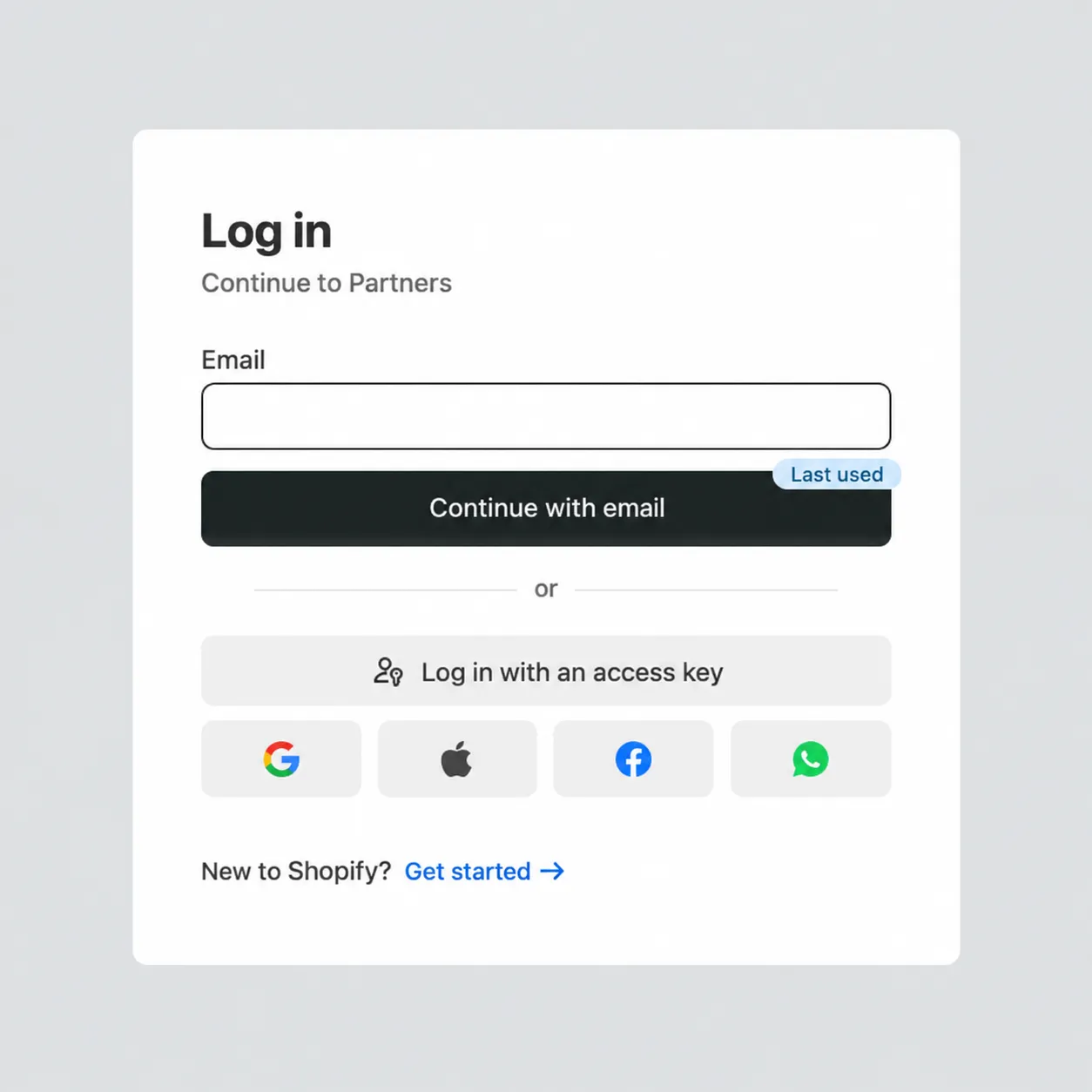
We know this one inside out, because it's how we get into our clients' stores. You never give an agency your password. Shopify has a separate mechanism for this, the collaborator account:
- In your admin, go to Settings → Users → Security and copy the 4-digit collaborator request code.
- Share the code with the agency. They send an access request from their Partner Dashboard and tick the permissions they need.
- You get an email, review the scope and approve the request (or narrow it down).
From then on, the agency enters your store through its own account at partners.shopify.com. A collaborator account doesn't count toward your plan's user limit, and when the project ends you remove it with one click. The activity history stays in your logs.
If you're still weighing up who should work on your store, here's how we approach Shopify development.
Shopify customer login – why there's no password
From a shopper's point of view, everything "is Shopify." Technically, a customer account is a completely different mechanism from the admin, even when the platform's name shows up in emails or in the URL.
How it works today
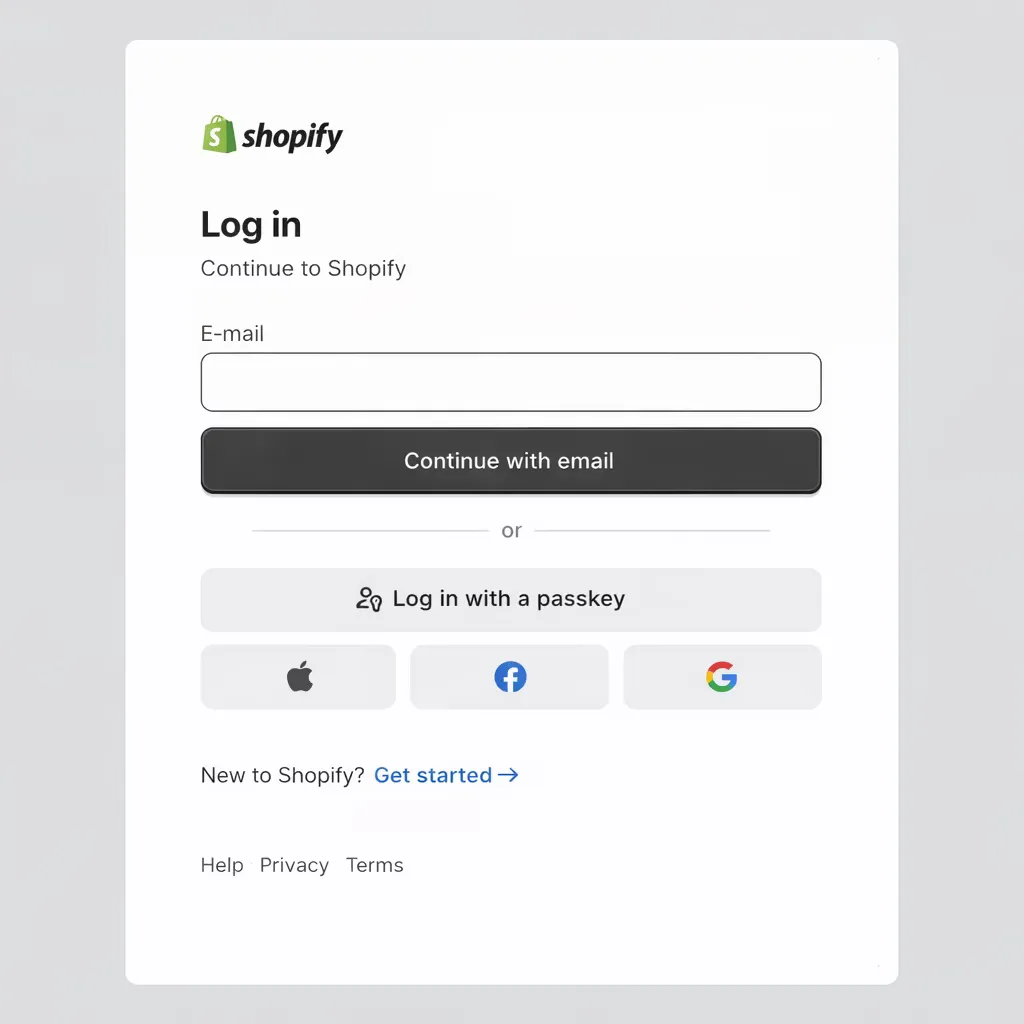
In the current version of Shopify customer accounts, there simply is no password. The customer enters an email address, receives a one-time 6-digit code and is signed in once they type it. They can also use Shop sign-in, and the store can turn on Google or Facebook sign-in as well. A session can last up to 365 days, so on the next purchase the customer is usually already signed in.
That's where the "I can't log in because I don't have a password" emails come from. The customer placed an order, never created an account by hand, and is now looking for a password field that doesn't exist. The account was created automatically along with their customer profile. Some stores still run legacy customer accounts (with a classic password and reset), so before you reply, check Settings → Customer accounts to see which version you use.
Why customers try to log in "to Shopify"
The Shopify name appears in email footers, in URLs and in search results. That's enough for a customer to search for "Shopify login" and land on the admin login page. The result? A message saying the account doesn't exist, and a belief that your store is broken.
The fix is on your side, and it's cheap: a visible account icon in the header, one sentence in the order confirmation email ("Check your order status here, you'll sign in with a code sent to your email") and a short FAQ answer. A clearly explained "My account" cuts login questions more effectively than any automation.
Also remember that customer accounts are optional. Plenty of stores deliberately keep checkout login-free because it shortens the path to purchase. We cover trade-offs like this in our piece on the pros and cons of Shopify.
Can't log in to Shopify? Common causes and fixes
The first thought is usually "Shopify is down." That's rare (you can check at shopifystatus.com). Far more often it's one of the following.
You're logging in at the wrong place
An owner tries the customer account form; a customer lands on the admin login. Both pages look official, and both respond with a perfectly valid error. What to do: go back to the cheat sheet above and find your row.
You don't remember your store URL
With several stores, or after a long break, it happens more than you'd think. What to do: sign in at shopify.com/login and you'll see your list of stores. If you can't even remember which email the account is under, Shopify has a store recovery page: enter an email address and you'll get a list of the stores linked to it.
The password reset email "never arrives"
A classic. What to do: check spam, and check that you're typing the exact address the account was created with. The reset link is valid for 48 hours, so last week's email won't work anymore. And make sure you're resetting the right type of account: a customer on the new customer accounts has nothing to reset, because they sign in with a code.
You lost the phone with two-step authentication
What to do: use your backup method or the recovery codes Shopify gave you when you turned on 2FA (a file called shopify_recovery_codes.txt; worth finding now). If you have neither, what's left is the account recovery flow at accounts.shopify.com, which requires identity verification and takes time.
The password works, but "everything is locked"
The staff account has limited permissions. What to do: ask the owner to extend your role. Shopify Support won't do it on the owner's behalf.
"It worked yesterday"
This usually means someone changed the password, revoked access, the store was frozen over an unpaid bill, or ownership changed. What to do: ask the store owner before you start resetting things on your own.
The owner left and nobody has access
The hardest scenario: the store was set up by a former partner, employee or previous agency, and they're the only account owner. What to do: only the current owner can transfer store ownership. If that's impossible, you're left with contacting Shopify Support and proving your right to the store. That's why the owner account should always belong to the company, on a company email address, and not to whoever happened to set the store up.
Secure Shopify login – the minimum that makes a difference
Login is where money, customer data and sales history meet. You don't need a twenty-page security policy. Three habits are enough.
- Two-step authentication or a passkey on every account with admin access. It protects the store even if a password leaks. After a few days you stop noticing it;
- Permissions that fit the task. Everyone sees as much as they need. Temporary access should be temporary;
- A user list review once a quarter. The agency from two years ago, the freelancer who did one fix, the former employee. The user list in your admin shouldn't hold surprises.
That's not a lack of trust. It's housekeeping.
And when does login become a warning sign? When nobody is sure who owns the store, passwords travel through chat apps and access problems come back every month. At that point it's rarely about one account. The back office has grown faster than the order around it. The same goes for bigger changes, such as migrating from WooCommerce to Shopify or moving to Shopify Plus: a good moment to set up access from scratch.
Shopify login without the confusion – how we help sort it out
Shopify login is rarely a real technical problem. It's almost always about the place, the account type or the permissions. The admin is one thing, customer accounts are another, agency access is a third, and as long as those roles stay separate, everything works.
When we take over a store, this is where we start: who the owner is, who has access and why, how customers sign in and what they see in their emails. It's usually an hour of work that saves dozens of messages in the support inbox. If you'd like us to look at it together, let's talk. No pressure.
When everyone knows where they log in and why, Shopify stops being a source of confusion and goes back to being a tool that does its job.
Related articles